Motion Computing CL900 Guida di Avvio Rapido Pagina 1
Navigare online o scaricare Guida di Avvio Rapido per Tablet Motion Computing CL900. Motion Computing CL900 Getting Started Guide Manuale Utente
- Pagina / 2
- Indice
- SEGNALIBRI


Sommario
Getting Started with the Motion® CL900 Model FWS-001Motion Computing and Motion are registered trademarks of Motion Computing, Inc. in the United S
Set up wireless One of the rst things you’ll want to do is set up for wireless communication. The CL900 supports: • Wi-Fi (802.11a/b/g/n) • Bluetooth
Prodotti e manuali riguardandi Tablet Motion Computing CL900
 (8 pagine)


 (106 pagine)
(86 pagine)
(18 pagine)
(106 pagine)
(86 pagine)
(18 pagine)
LG HT806TGW podręczniki
Instrukcje obsługi i podręczniki użytkownika dla Odtwarzacze DVD LG HT806TGW.
Dostarczamy 3 pdf podręczników LG HT806TGW do pobrania za darmo według typów dokumentów: Instrukcja Użytkownika
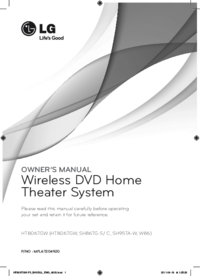
Lg HT806TGW Instrukcja Użytkownika (47 strony)
Marka: Lg | Kategoria: DVD players | Rozmiar: 3.87 MB |
Spis treści
7
10
10
12
13
22
22
23
27
30
30
30
41
44
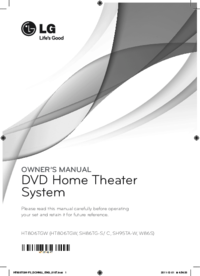
Lg HT806TGW Instrukcja Użytkownika (45 strony)
Marka: Lg | Kategoria: DVD players | Rozmiar: 3.82 MB |
Spis treści
10
11
20
20
21
25
28
28
28
39
42
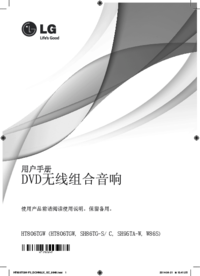
Lg HT806TGW Instrukcja Użytkownika (60 strony)
Marka: Lg | Kategoria: DVD players | Rozmiar: 5.26 MB |

Spis treści
9
10
13
14
14
15
16
17
17
18
24
25
25
31
31
32
39
Więcej produktów i instrukcji dla Odtwarzacze DVD LG
| Modele | Rodzaj dokumentu |
|---|---|
| DA-3620AD | Instrukcja Użytkownika LG DA-3620AD Instruktionsbogen, 30 strony |
| DF9911PH |
Instrukcja Użytkownika
LG DF9911PH Owner’s Manual,
33 strony
|
| DM2520K |
Instrukcja Użytkownika
LG DM2520K Owner's manual,
38 strony
|
| LH-T761SB |
Instrukcja Użytkownika
LG LH-T761SB Owner's manual,
28 strony
|
| LF-K9350Q |
Instrukcja Użytkownika
LG LF-K9350Q Owner's manual,
32 strony
|
| FB166 |
Instrukcja Użytkownika
 LG FB166 Інструкція користувача,
40 strony
LG FB166 Інструкція користувача,
40 strony
|
| BD350V | Instrukcja Użytkownika LG BD350V Brukermanual, 36 strony |
| MDD112 |
Instrukcja Użytkownika
LG MDD112 Owner’s Manual,
20 strony
|
| DK377 |
Instrukcja Użytkownika
LG DK377 Руководство пользователя [it] ,
54 strony
|
| DM7630 |
Instrukcja Użytkownika
LG DM7630 Owner’s Manual,
44 strony
|
| HT502TH-A2 |
Instrukcja Użytkownika
LG HT502TH-A2 Owner’s Manual,
24 strony
|
| DP547H |
Instrukcja Użytkownika
LG DP547H Owner's manual,
24 strony
|
| V190 |
Instrukcja Użytkownika
LG V190 Owner's manual,
36 strony
|
| BH7540TW |
Instrukcja Użytkownika
LG BH7540TW manuel du propriétaire,
80 strony
|
| RBD154 |
Instrukcja Użytkownika
 LG RBD154 Руководство пользователя,
20 strony
LG RBD154 Руководство пользователя,
20 strony
|
| LAD4700 |
Instrukcja Użytkownika
LG LAD4700 Owner’s Manual,
36 strony
|
| DVD-3351P |
Instrukcja Użytkownika
LG DVD-3351P Owner’s Manual,
48 strony
|
| MD9350DV |
Instrukcja Użytkownika
LG MD9350DV Owner's manual,
24 strony
|
| DV4941P |
Instrukcja Użytkownika
LG DV4941P Owner's manual,
44 strony
|
| HT806PH |
Instrukcja Użytkownika
LG HT806PH Owner's manual,
43 strony
|
© 2020, manymanuals.it. Tutti i diritti riservati | 0.045 s |
 Manymanuals.com
 Manymanuals.de
 Manymanuals.fr
 Manymanuals.it
 Manymanuals.pl
 Manymanuals.cz
 Manymanuals.es
 Manymanuals-pt.com
Commenti su questo manuale